
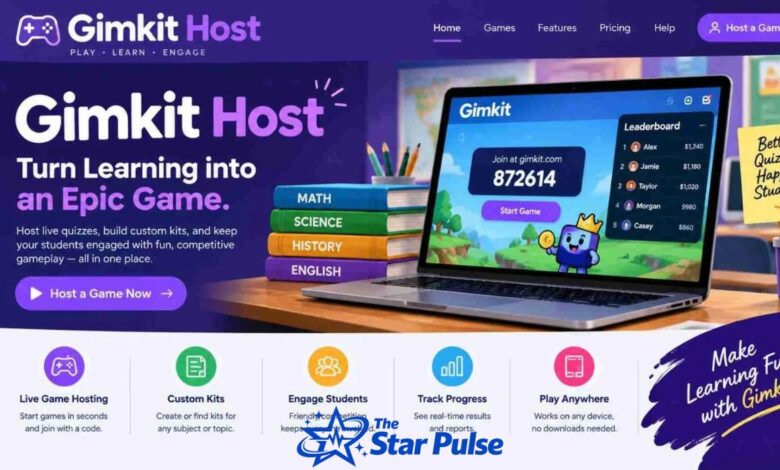
Gimkit is an educational platform that makes learning more interactive through quiz-based games. The Gimkit Host feature allows teachers and organizers to launch live games, invite participants, and manage classroom activities. Students answer questions, earn virtual rewards, and practice important concepts while enjoying a game-based learning experience.
Whether you are a teacher, student, or beginner, learning how to host a Gimkit game is straightforward. This guide explains how to select a question set, choose a game mode, generate a game code, manage players, and troubleshoot common issues.
What Is Gimkit Host?
Gimkit Host refers to starting and managing a live game on the Gimkit platform. The host selects a question set, configures the available settings, and invites participants to join. Unlike students, who primarily answer questions and participate in gameplay, the host manages the session. Teachers commonly use Gimkit for revision, vocabulary practice, mathematics exercises, and classroom assessments. The available features depend on the selected game mode and account access.
Why Use Gimkit for Learning?
Gimkit combines quizzes with game mechanics to encourage participation. Students answer questions and may earn virtual currency or rewards that help them progress through a game. This approach can make repetitive revision more enjoyable and encourage students to practice difficult topics. Teachers can also use gameplay to identify areas that require additional explanation. However, game scores should not be treated as a complete measure of understanding. Combining Gimkit with classroom discussion and follow-up exercises makes the activity more educationally valuable.
Create an Account and Prepare Your Kit
Visit Gimkit.com and sign in or create an account. Once you reach the dashboard, select an existing kit or create a new one if the relevant feature is available to your account. A kit contains questions and answers organized around a subject, such as science, English, history, or mathematics. Review the questions before hosting to ensure that the information is accurate, clearly written, and suitable for your students. Preparing the kit in advance helps avoid unnecessary delays during the live session.
Click Play Live
Find the kit you want to use and select Play Live. This opens the game setup process, where you can choose how participants will experience the activity. Make sure the selected kit matches your lesson objectives. For example, a vocabulary kit can help students review word meanings, while a mathematics kit can provide calculation practice. Beginners should check their questions before proceeding to ensure the activity runs smoothly.
Choose a Gimkit Game Mode
Gimkit offers different game modes that create different learning experiences. Some focus on answering questions and earning rewards, while others introduce teamwork, strategy, or interactive environments. Choose a mode according to your students’ ages, available time, and learning objectives. If this is your first session, select a mode with simple rules so participants can concentrate on the questions rather than learning complicated controls. Game modes may change over time, and availability can depend on your account.
Customize Host Settings
After choosing a game mode, continue to the settings screen. Depending on the mode, you may find options for time limits, game goals, late joining, and nickname controls. Select settings that suit your classroom. A short session may work well for a quick review, while a longer game can provide more practice with difficult material. Review the options carefully because not every setting is available in every mode.
Share the Gimkit Host Game Code
When the setup is complete, enter the game lobby. Your live session displays a game code that participants can use to join.
Share the code by displaying it on a classroom screen, reading it aloud, or sending the joining link. Participants can visit Gimkit Join and enter the code. If a QR code is available, students can scan it to access the session more conveniently. Always share the code for the current game rather than an old session’s code.
Manage Players in the Lobby
Before starting the game, check that participants have joined successfully. Ask students to enter the correct code and select an appropriate nickname when prompted. Review the player list and help anyone experiencing difficulties. If the game offers a nickname generator, consider using it to simplify classroom management. Give everyone enough time to join before beginning the activity. For online lessons, written instructions in the meeting chat can help students follow the process independently.
Start and Control the Live Game
Once participants are ready, select Start Game. Students can then answer questions and participate in the selected game mode. Depending on the mode, the host may see player progress, a leaderboard, or other game information. Explain the rules before starting and monitor the activity as it progresses. If students struggle with a particular question, discuss it afterward to reinforce understanding. The goal should be effective learning, not simply achieving the highest score.
Fix Common Gimkit Host Problems
Some users may experience incorrect codes, slow loading, connection failures, or difficulties joining a session. First, verify that participants are using the official joining page and the correct current code. If the page does not load, refreshing it or reopening the browser may help. Check the internet connection and try an updated browser if necessary. School network restrictions can also interfere with access. For additional assistance, visit the Gimkit Help Center.
Use Gimkit for Different Learning Activities
Gimkit Host can support vocabulary lessons, science revision, mathematics practice, language learning, and test preparation. Teachers can begin a lesson with a short quiz to review previously taught material or use a game at the end of a class to reinforce important concepts. Online tutors can also use live games to encourage participation during remote lessons. Choose questions that match the students’ abilities and provide explanations after the game. This helps ensure that gameplay supports meaningful learning rather than becoming a distraction.
Best Practices for Teachers and Beginners
Preparation is essential for a successful Gimkit session. Review the questions, choose a suitable mode, and test the joining process before class. Explain the rules clearly and make sure students understand how to participate. During the game, observe which questions cause confusion and use that information to guide future lessons. Consider students who have limited internet access or need additional time to answer. Keep competition friendly and emphasize progress, cooperation, and understanding.
What Happens After a Gimkit Game Ends?
A game finishes when its selected goal is reached or the host ends the session. Depending on the mode and available features, you may be able to review results or discuss student performance. Use the experience to identify difficult topics and explain incorrect answers. Remember that a leaderboard reflects performance within a particular game, not necessarily a student’s overall knowledge. Follow up with additional practice or a short classroom discussion to reinforce important concepts.
Final Thoughts
Gimkit Host offers a convenient way to make educational activities more engaging. By preparing a question set, choosing a game mode, adjusting available settings, and sharing the game code, beginners can organize a live learning session with confidence.
For the best results, test the setup before class, choose questions that match your objectives, and review important answers after gameplay. When used thoughtfully, Gimkit can support classroom revision, online tutoring, and interactive learning.
FAQs
1. What is Gimkit Host?
Gimkit Host is the process of launching and managing a live game. The host chooses a kit, selects a game mode, adjusts available settings, and invites participants to join.
2. How do I host a Gimkit game?
Sign in to Gimkit, select a kit, and click Play Live. Choose a game mode, configure the settings, and share the joining code. Start the game when participants are ready.
3. How do students join a Gimkit game?
Students visit gimkit.com/join and enter the code displayed on the host’s screen. They can also use an available joining link or QR code.
4. Can I host a Gimkit game for free?
Gimkit offers free account access, but certain features may require a paid plan. Check the official website for current subscription details and feature availability.
5. Why is my Gimkit host game not working?
Common causes include an incorrect code, an unstable internet connection, browser problems, or network restrictions. Check the code, refresh the page, and consult the official help center if the issue continues.