

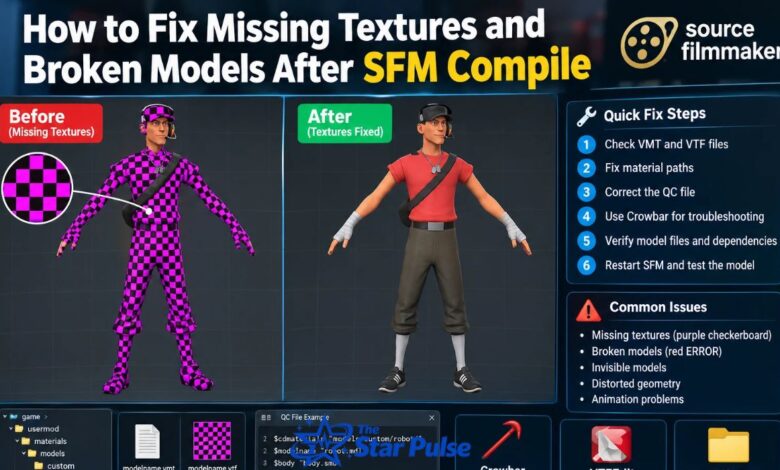
SFM Compile is an important part of preparing custom 3D models, materials, and animations for Source Filmmaker (SFM). It helps creators convert model files into formats that the Source engine can recognize and use. However, compiling a model does not always guarantee that it will appear correctly. You might encounter purple-and-black checkerboard textures, invisible objects, distorted models, missing body parts, or models that fail to load. These problems can interrupt animation projects and make custom assets difficult to use.
Understanding how SFM Compile works makes troubleshooting much easier. Most model problems are related to incorrect file paths, missing material definitions, unsupported texture formats, improperly configured QC files, or errors during compilation. The good news is that many of these issues can be fixed without rebuilding a model from scratch. This guide explains how to identify common SFM Compile errors, repair missing textures, restore broken models, use tools such as Crowbar and StudioMDL, and organize files correctly. Whether you are a beginner or an experienced Source Filmmaker creator, these practical steps can help you build a more reliable workflow.
Understand What SFM Compile Does
SFM Compile is commonly used to describe the process of converting custom 3D assets into formats supported by the Source engine. In a typical model workflow, an artist prepares a model in a 3D application, exports it as an intermediate file such as SMD or DMX, and uses a QC configuration file to specify how the model should be compiled. StudioMDL processes the model data and generates a compiled model, usually including files such as MDL, VVD, and VTX. These files work together to make the model available to compatible Source engine applications. Textures and materials, however, require their own correctly configured files. Consequently, a model may compile successfully but still display missing textures because the material files were not created, converted, or placed in the correct locations.
Identify the Exact Texture or Model Error
Before changing files, determine what is actually broken. A purple-and-black checkerboard usually indicates a missing material or texture, while a red ERROR model generally means the engine cannot locate or load the model correctly. A completely invisible model may have an incorrect model path, an unsupported configuration, or geometry and rendering problems. Open the Source Filmmaker console and look for missing-material messages after loading the asset. Record the missing file names and paths. This diagnostic step makes SFM Compile troubleshooting faster because you can focus on the specific error instead of reinstalling everything unnecessarily.
Check the VMT and VTF Files
Two essential files are involved in Source Filmmaker textures: VMT and VTF. A VMT file defines the material and identifies which texture the engine should use, while a VTF file contains the texture image. If either file is missing or incorrectly referenced, the model may appear with checkerboard textures. Open the VMT file in Notepad and inspect its $basetexture entry. Confirm that the referenced VTF exists inside the appropriate materials directory. Remember that the texture path normally excludes both the materials/ prefix and the .vtf extension.
Correct the Materials Folder Structure
Incorrect folder organization is a frequent cause of missing textures after SFM Compile. Custom materials usually belong inside a directory such as SourceFilmmaker/game/usermod/materials/, followed by the appropriate subfolders. For example, a texture referenced as models/custom/robot/body should normally exist at materials/models/custom/robot/body.vtf. Its corresponding VMT must be available at the matching material path. Avoid creating duplicate materials/materials folders or placing files in directories that SFM does not load. Keeping the original folder structure intact can resolve many missing-texture problems immediately.
Repair the QC File and Material Paths
The QC file contains instructions used by the Source model compiler. Its $cdmaterials command tells the engine where to search for a model’s material files. If this directory does not match your actual folder structure, the model may compile without displaying its intended textures. Open the QC file and compare its material directory with the location of your VMT files. For example, $cdmaterials "models/custom/robot/" indicates a corresponding material directory under materials/models/custom/robot/. Correct the path and recompile if necessary. Use Crowbar to simplify compiling and reviewing model files.
Use Crowbar to Diagnose Broken Models
Crowbar is a popular utility for compiling and decompiling Source engine models. It can help identify problems in QC configuration, missing source files, and incorrect model output. If a model appears broken after SFM Compile, decompile it when appropriate and inspect the generated QC file and source references. Check whether the required SMD or DMX files exist and whether their names match the configuration. After correcting the problems, compile again using the appropriate Source Filmmaker settings. Always keep a backup of the original model before modifying its files.
Fix Damaged or Unsupported Texture Files
Sometimes the paths are correct, but the texture still fails to load. In that case, inspect the VTF file using a compatible utility such as VTFEdit or VTFEdit Reloaded. If the file cannot be opened, obtain a clean copy or re-export it from the original image. When converting textures, check the image dimensions, compression format, alpha channel, and compatibility with the intended Source engine version. Avoid converting every texture without a reason. Test one problematic texture first, then apply the verified settings to other files that exhibit the same problem.
Resolve Missing Models and Broken Geometry
Not every SFM Compile issue involves textures. Distorted meshes, missing body parts, and invisible geometry can result from incomplete model files, incorrect exports, or problems with the source mesh. Confirm that the compiled MDL file has its required companion files, including VVD and VTX data where applicable. If the model looks stretched or deformed, inspect bone weights, armature assignments, and export settings in your 3D application. Re-export the source mesh and compile it again if necessary. Changing material paths will not repair damaged geometry, so identify the symptom before choosing a solution.
Check Model Scale, Bones, and Animations
A model may compile successfully yet appear unusually large, tiny, incorrectly positioned, or unable to animate. These problems often originate in export settings, model scale, bone names, or animation configuration. Check the source model’s transforms and confirm that its skeleton matches the intended reference structure. If animations fail, inspect the QC file’s $sequence entries and verify that the referenced animation files exist. Test the model in a simple scene before using it in a complex animation. Separating geometry, rigging, and texture checks helps prevent unnecessary recompilation when only one component needs attention.
Verify SFM Search Paths and Dependencies
Source Filmmaker does not automatically load every asset installed on your computer. A custom model may depend on materials from another Source game or a separate downloaded content pack. If those dependencies are unavailable, its textures or model components may fail to load. Use the Source Filmmaker SDK’s search-path settings to enable the appropriate content folders when legally permitted and technically compatible. Keep custom assets organized in separate directories instead of mixing unrelated files. Also check the model creator’s instructions for required dependencies. A correct file can still appear missing when its containing directory is not part of SFM’s active search paths.
Reload Materials and Test the Repair
After correcting the VMT, VTF, or folder structure, restart Source Filmmaker and load the model again. Restarting is a straightforward way to ensure the application reads the updated assets rather than relying on previously loaded material data. If you prefer using console commands, mat_reloadmaterial can reload a specified material, although command behavior can vary. Test the model from multiple angles and examine its textures under different lighting conditions. Confirm that transparency, normal maps, and surface details work as expected. Save a separate test session before replacing assets in an established animation project.
Prevent Future SFM Compile Errors
A consistent workflow can prevent many common SFM Compile problems. Keep source meshes, QC files, material definitions, textures, and compiled models organized in clearly named directories. Avoid changing filenames after compilation unless you also update the relevant references. Maintain backups before replacing files, and record any dependencies required by downloaded assets. Review compiler logs instead of ignoring warnings and errors. When testing a new model, compile and load it in a clean environment before adding complex animations. These habits make troubleshooting easier and reduce the chance of repeating the same mistakes across multiple projects.
Follow a Practical Troubleshooting Checklist
When missing textures or broken models persist, follow a simple order: identify the visible error, inspect the console, verify the MDL and companion files, locate the VMT, check its VTF reference, and confirm the $cdmaterials directory. Next, investigate unsupported texture formats, missing dependencies, or damaged geometry as appropriate. Change one thing at a time and test the result. If the problem remains, compare the asset’s setup with a known-working model built for the same Source engine environment. This methodical approach is more reliable than randomly changing settings or repeatedly downloading the same files.
Final Thoughts
Fixing missing textures and broken models after SFM Compile usually requires careful attention to file paths, material definitions, model dependencies, and compilation settings. The purple-and-black checkerboard often points to a VMT or VTF problem, while distorted geometry and red ERROR models require different checks. Tools such as Crowbar and VTFEdit can help diagnose specific issues, but the correct solution depends on the underlying cause. By checking one component at a time, keeping organized backups, and testing every change, you can build a dependable Source Filmmaker workflow and spend more time creating animations.
FAQs
1. What causes missing textures after SFM Compile?
Missing textures usually result from an absent VMT or VTF file, an incorrect $basetexture reference, or a mismatched $cdmaterials path. Verify the files and their directory structure before recompiling.
2. How do I fix purple-and-black textures in SFM?
Find the missing material in the console, locate its VMT file, and check whether the referenced VTF exists. Correct any incorrect paths, save the changes, and restart SFM to test the repair.
3. Which tools help fix SFM Compile errors?
Crowbar helps compile and decompile Source models, while VTFEdit or VTFEdit Reloaded helps inspect and convert texture files. A text editor is also useful for correcting QC and VMT paths.
4. Why does my compiled model show a red ERROR sign?
This usually indicates that SFM cannot locate or load the model correctly. Check the MDL file, required companion files, model directory, active search paths, and any missing dependencies.
5. Do I need to recompile after fixing textures?
Not always. If the existing model points to the correct material path and you only repair a VMT or VTF file, restarting SFM may be sufficient. If the QC file or compiled model’s material directory needs changing, recompilation may be necessary.