

Knowing how to clear browser cache on laptop devices can help you troubleshoot website errors, refresh outdated pages, and manage temporary storage. Web browsers such as Google Chrome, Microsoft Edge, Mozilla Firefox, and Safari save certain website files so that frequently visited pages can load more efficiently. These files include images, scripts, and other resources that your browser may reuse on future visits. However, cached information can sometimes become outdated or damaged, causing websites to display incorrectly or fail to load updated content.
Fortunately, clearing the browser cache is a simple process that does not require advanced technical knowledge. Most browsers provide a dedicated option to delete cached images and files while allowing you to keep other information, such as saved passwords and browsing history. This guide explains how to clear browser cache on Windows and Mac laptops, use keyboard shortcuts, troubleshoot common problems, and understand the difference between cache, cookies, and browsing history.
What Is Browser Cache?
Browser cache is temporary storage used by your web browser to keep copies of certain website resources on your laptop. When you revisit a website, the browser may reuse these files instead of downloading everything again. This can reduce loading time, save bandwidth, and make everyday browsing more efficient. For example, a website’s logo, background image, or frequently used design elements may be stored locally.
However, cached files are not permanent copies of an entire website. Some resources expire, and websites may update their content while your laptop still has older versions stored. When the browser uses outdated resources, a page may look broken, display an old design, or behave unexpectedly. Clearing the cache removes selected temporary files and encourages the browser to download fresh versions when needed.
Why Should You Clear Browser Cache on a Laptop?
Clearing browser cache can be useful when websites load incorrectly, images fail to appear, buttons stop responding, or a page continues displaying old information after an update. It can also help resolve certain login-page display problems and free some temporary storage space. If you manage a website, clearing the cache can help you check whether recent design or content changes are appearing correctly.
Nevertheless, clearing the cache is not a guaranteed way to make every laptop faster. A slow connection, excessive browser extensions, insufficient memory, or background applications may be responsible for poor performance. Cached files usually exist to improve efficiency, so deleting them unnecessarily can make some websites load more slowly during the next visit. Use this troubleshooting step when there is a specific reason rather than treating it as a compulsory daily maintenance task.
How to Clear Browser Cache on Laptop in Google Chrome
Google Chrome is one of the most commonly used laptop browsers, and its cache-clearing process is straightforward. First, open Chrome and click the three-dot menu in the upper-right corner. Select Settings, open Privacy and security, and choose Delete browsing data. Depending on your version, the wording or menu placement may differ slightly.
Choose a time range, such as All time, if you want to remove all cached files covered by the available selection. Select Cached images and files, and make sure other categories are unchecked if you want to preserve them. Click Delete data to complete the process. Afterward, revisit the affected website and refresh the page. Chrome may take slightly longer to load some pages initially because it needs to download resources again.
How to Clear Browser Cache on Laptop in Microsoft Edge
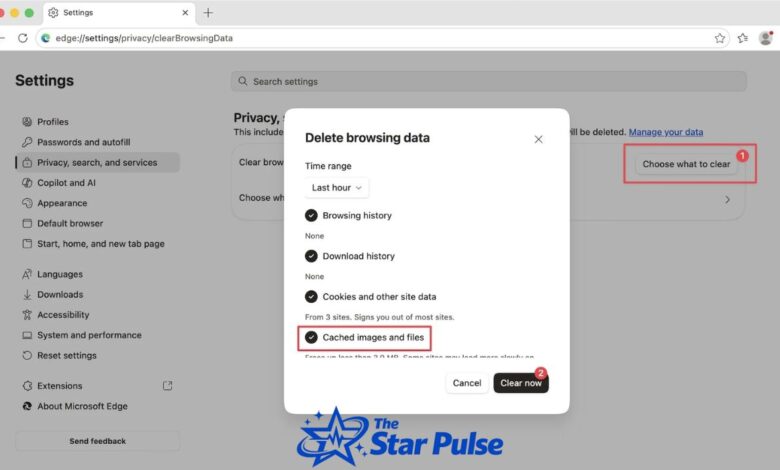
Microsoft Edge includes a built-in tool for clearing cached website data on Windows and Mac laptops. Open Edge, select the three-dot menu, and go to Settings. Choose Privacy, search, and services, then locate the section for clearing browsing data. Select Choose what to clear or the equivalent option shown in your version.
Choose the appropriate time range and select Cached images and files. If you only want to clear the cache, leave browsing history, cookies, passwords, and other categories unchecked. Select Clear now to finish. Open the website again to check whether the issue has disappeared. If Edge synchronizes browsing information across devices, review its sync settings before deleting additional categories, because some types of data may also be removed from other synchronized devices.
How to Clear Browser Cache on Laptop in Mozilla Firefox
Firefox offers a simple way to remove cached website resources without necessarily deleting other browsing information. Open Firefox and click the three-line menu in the upper-right corner. Select Settings, then open Privacy & Security. Find the section for cookies and site data, and select Clear Data or the equivalent option.
In the clearing window, select the temporary cached files or cached web content option. If your goal is to remove only the cache, avoid selecting cookies and site data unless you specifically want to remove them. Confirm your selection by clicking Clear. Once Firefox finishes, reopen the affected website and see whether it now displays correctly. The exact labels can vary between Firefox versions, but the privacy settings remain the main place to look for cache-management controls.
How to Clear Browser Cache on Laptop Mac Using Safari
Safari is the default browser on macOS, and its cache-clearing process differs slightly from that of Chrome and Edge. Open Safari and select Safari > Settings from the menu bar. On versions that provide it, open the Advanced section and enable the option to show web developer features in the menu bar. In some versions, this setting may appear under a different label or location.
Once the Develop menu appears, select Develop > Empty Caches. This removes cached website resources without requiring you to clear your entire browsing history. If you cannot find the Develop menu, check your installed Safari version and its advanced settings. Avoid choosing an option that clears all history and website data if your intention is only to remove temporary cached files. Menu labels may differ slightly depending on your macOS release.
Quick Method: Clear Browser Cache Using Keyboard Shortcuts
If you want to clear browser cache on a laptop quickly, keyboard shortcuts can save time. On most Windows laptops, press Ctrl + Shift + Delete while your browser is open. This shortcut usually opens the browsing-data removal window in Chrome, Edge, and Firefox. On Mac laptops, try Command + Shift + Delete in supported browsers. If the shortcut does not work, open the browser’s settings and locate the privacy or history section.
After the window opens, choose your preferred time range and select cached images and files. Review the other options before confirming. Keyboard shortcuts are particularly useful when you regularly troubleshoot websites or work with online applications. Remember that the shortcut opens the clearing tool; it does not automatically delete your cache. You must still choose the correct categories and confirm the action.
How to Clear Browser Cache on Laptop Without Deleting Saved Passwords
Many users worry that clearing browser cache will remove their passwords, bookmarks, or other important information. Fortunately, these items are generally stored separately from cached images and files. To preserve them, select only the cache option in your browser’s clearing window and leave saved passwords, autofill information, and bookmarks untouched.
Cookies require special attention because they can keep you signed in to websites. Removing cookies and other site data may sign you out or reset certain website preferences. If you want to remain logged in, avoid selecting those categories unless necessary. Before confirming any deletion, read the available options carefully. This small precaution helps you troubleshoot browser problems without losing information you intended to keep.
Clear Cache to Fix Website Loading Problems
When a website looks outdated or fails to display properly, try refreshing the page before clearing the entire cache. On many Windows browsers, Ctrl + F5 or Ctrl + Shift + R requests a fresh reload. On Mac, Command + Shift + R works in several browsers. These shortcuts can help determine whether the issue involves cached resources.
If refreshing does not solve the problem, clear the cached images and files, then reopen the page. You can also test the website in a private or incognito window. If it works there but not in your normal browsing session, stored website data or a browser extension may be involved. If the problem continues across different browsers and devices, the website’s server or your internet connection could be responsible instead.
How Often Should You Clear Browser Cache?
There is no universal schedule for clearing browser cache on a laptop. Most users can leave the cache alone unless they experience website errors, outdated content, or other specific problems. Clearing it every day is generally unnecessary because browsers manage temporary files automatically and reuse them to improve loading efficiency.
You may want to clear the cache after a major website update, while troubleshooting an online account, or when a particular page repeatedly displays incorrect content. If you use a shared laptop, remember that clearing the cache alone is not a complete privacy measure. Consider browser profiles, private browsing, account sign-outs, and appropriate security settings for your circumstances.
Cache vs. Cookies vs. Browsing History
Although these terms often appear together, they describe different types of browser information. Cache stores temporary website resources, including images and scripts. Cookies are small pieces of data websites use for purposes such as maintaining sessions and remembering preferences. Browsing history records websites you have visited.
Deleting these categories has different consequences. Clearing the cache may make websites download files again. Removing cookies may sign you out or reset saved website preferences. Deleting browsing history removes the corresponding visit records from the selected browser or device. Understanding these differences helps you choose the right option when troubleshooting an issue or managing privacy.
Common Mistakes to Avoid When Clearing Cache
One common mistake is selecting every available category without checking what each one does. This can remove cookies, browsing history, or other information unnecessarily. Another mistake is expecting cache clearing to solve problems caused by weak internet connectivity, outdated browser software, malware, or incompatible extensions. Although cache removal is useful, it cannot fix every technical issue.
Also, do not assume that clearing the cache deletes all personal information from your laptop. Your downloads, bookmarks, saved passwords, and other stored information may remain, depending on your selections. If a website still behaves incorrectly after clearing the cache, update your browser, temporarily disable suspicious extensions, or test another browser. Make changes one at a time so you can identify the actual cause.
Best Practices for Maintaining Browser Performance
Good browser maintenance involves more than deleting temporary files. Keep your browser updated, remove extensions you no longer use, close unnecessary tabs, and restart the browser if it becomes unresponsive. Check your laptop’s available storage and memory when performance problems affect multiple applications. These steps can address issues that cache clearing alone cannot resolve.
For website developers and frequent online users, a hard refresh can be especially helpful after a page update. If you regularly encounter problems with one website, clear that site’s stored data when your browser provides the option, rather than deleting everything unnecessarily. Always review the available choices before removing cookies or other data. A targeted approach saves time and helps preserve useful browsing information.
Final Thoughts
Learning how to clear browser cache on laptop devices is a practical skill for resolving outdated pages, display errors, and certain website loading problems. Whether you use Chrome, Edge, Firefox, or Safari, the process generally involves opening the browser’s privacy settings, selecting cached files, and confirming deletion.
For the safest approach, clear only the cache when that is all you need to remove. Keep passwords and other important information untouched, and remember that clearing cached files is a troubleshooting method rather than a guaranteed performance upgrade. With the steps in this guide, you can manage browser cache confidently and choose the right solution for your laptop.
FAQs
1. How do I clear browser cache on a laptop quickly?
Press Ctrl + Shift + Delete on most Windows laptops or try Command + Shift + Delete on Mac. Select cached images and files, choose a time range, and confirm the deletion.
2. Will clearing browser cache delete my passwords?
No, not if you select only cached images and files. Saved passwords are generally a separate category, so leave that option unchecked to preserve them.
3. Does clearing cache make a laptop faster?
It may help resolve certain browser problems and free some temporary storage space. However, it does not guarantee faster performance because other factors, including memory, extensions, and internet speed, can affect browsing.
4. How often should I clear browser cache?
Clear it when websites display outdated content, fail to load correctly, or behave unexpectedly. Most people do not need to clear their cache on a daily schedule.
5. What is the difference between clearing cache and cookies?
Cache stores temporary website resources to help pages load efficiently. Cookies store information such as session identifiers and preferences. Clearing cookies may sign you out of websites, while clearing only the cache generally does not.