

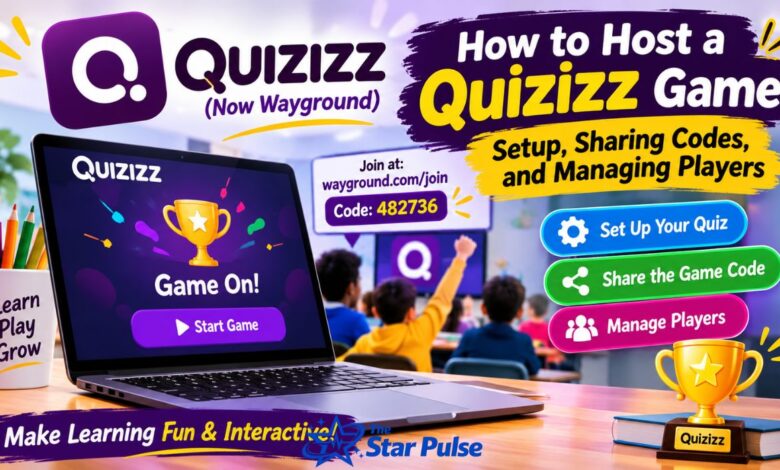
Online learning has become more interactive with educational platforms that combine entertainment and knowledge. Quizizz is one of the popular tools that allows teachers, students, and learners to participate in engaging quiz games. Whether you want to organize a classroom competition, test students’ understanding, or enjoy educational activities with friends, hosting a Quizizz game is a straightforward process. The platform is now known as Wayground, although many users still search for Quizizz because of its established name. Its features allow hosts to create quizzes, select different game modes, invite participants, and monitor performance. Understanding how to set up a session, share a game code, and manage players can make the entire experience more enjoyable and organized.
Understanding Quizizz and Its Hosting Features
Quizizz is an interactive learning platform designed to make assessments and classroom activities more engaging. Teachers can prepare questions, select ready-made quizzes, and organize live sessions where students participate using their own devices. The platform supports different question formats, including multiple-choice, fill-in-the-blank, polls, and other interactive activities. Its hosting features help educators control sessions while monitoring student participation and progress. Quizizz was officially renamed Wayground in 2025, but existing accounts, resources, and familiar learning experiences remain available. This means users searching for Quizizz Host can still access the platform through its updated website.
Creating an Account Before Hosting a Game
Before hosting your first Quizizz game, you should access the platform and sign in to an appropriate account. Visit the official Wayground website and select the login or sign-up option. Depending on the available choices, you can register using an email address or a supported Google account. Teachers should select the education-related account option when available because it provides access to classroom resources and teaching features. After signing in, explore your dashboard to understand where quizzes, classes, reports, and creation tools are located. Having an account makes it easier to save activities, organize resources, and manage future sessions.
Choosing an Existing Quiz for Your Game
You do not always need to create a quiz from scratch. Quizizz provides access to a library of educational resources created by teachers and other contributors. After opening your dashboard, use the search feature to find quizzes related to your subject, topic, or grade level. For example, you might search for mathematics, science, history, vocabulary, or general knowledge activities. Before selecting a resource, review its questions and difficulty level to make sure it matches your audience. You can also copy and customize suitable public resources when editing is available. Choosing an appropriate quiz saves preparation time and helps you organize a meaningful learning activity.
Creating Your Own Quiz for Hosting
If existing activities do not match your requirements, you can create a personalized quiz. Select the Create option and choose Assessment or Quiz. You can build questions individually, add answer choices, mark correct responses, and include explanations where appropriate. The platform supports multimedia elements, allowing you to make questions more interesting with images, audio, or video. You can also adjust question timers and point values to match your teaching objectives. Another useful option is Wayground AI, which can help generate questions from a topic or uploaded learning material. Always review AI-generated content carefully before publishing to ensure accuracy and relevance.
Selecting the Right Game Mode
Selecting a suitable game mode is an important part of hosting a successful Quizizz session. After opening your selected assessment, choose Start Now to begin setting up a live activity. Depending on the available options, you may select a student-paced or teacher-led experience. Student-paced activities allow participants to answer questions at their own speed, while teacher-led sessions provide greater control over the classroom experience. Other session options may include Classic, Team, and Test modes. Each format serves a different purpose, so consider whether your priority is competition, teamwork, independent practice, or formal assessment before starting.
Customizing Your Quizizz Game Settings
Before launching the session, review the customization settings carefully. Available options can influence how students answer questions and interact with the activity. Depending on the selected mode, you may be able to adjust timers, question order, music, leaderboards, and other gameplay features. For a classroom revision activity, shorter timers can maintain energy, but difficult questions may require additional thinking time. If your objective is to measure understanding rather than speed, choose settings that give students enough time to consider their answers. A balanced configuration creates a fair environment and helps participants concentrate on learning instead of worrying about unnecessary pressure.
Starting a Live Quizizz Game
Once your quiz and settings are ready, click Start to launch the live session. The platform creates a session that participants can enter using the displayed joining information. You will normally see a host dashboard or waiting lobby where incoming players appear. Give students a moment to connect before beginning the activity. Check that the selected quiz is correct and that the session settings match your original plan. When everyone is ready, start the game or use the available automatic-start option if configured. Hosting a live quiz allows you to manage the activity while observing participation and progress.
Sharing a Quizizz Game Code With Players
One of the most important parts of hosting a Quizizz game is sharing its joining code. A unique numerical code is generated when you start a live session or assign an activity. Display this code on your classroom screen, share it through a messaging platform, or provide it through your learning management system. Students can visit the official joining page at wayground.com/join and enter the code to access the activity. You can also share a direct joining link or QR code when those options are available. Remember that session codes are temporary, so participants should use the correct code while the activity remains active.
Explaining How Students Can Join a Game
Students generally do not need to understand complicated hosting settings to participate. They simply open the joining page, enter the session code, and follow the instructions displayed on their screens. Depending on the session configuration, they may need to enter their names or sign in through an available account. Once connected, their names appear in the host’s waiting area. Teachers should explain the joining process before starting, particularly when working with younger students or first-time participants. If someone enters the wrong code, ask them to check the numbers and try again. Clear instructions reduce confusion and prevent unnecessary delays.
Managing Players During a Live Session
Managing participants is essential when hosting a classroom competition or group learning activity. Keep an eye on the waiting lobby to confirm that the expected students have joined. If a participant experiences connection problems, give them an opportunity to reconnect while the session remains active. You should also establish simple rules about appropriate names, respectful competition, and independent answering. Depending on the available host controls, you can manage the session and monitor participant progress through the live dashboard. Avoid focusing only on the leaderboard because students have different learning speeds. The main objective should be participation, understanding, and improvement.
Monitoring Scores and Student Performance
Quizizz provides performance information that helps teachers understand how participants are progressing. During a live activity, the dashboard can display real-time information about scores and responses. After the session, reports provide additional insights into individual and classroom performance. Teachers can identify questions that many students answered incorrectly, recognize topics that require revision, and evaluate overall understanding. Instead of treating scores as the only measure of success, use the information to identify learning gaps. Reviewing incorrect answers with students can turn a competitive quiz into a valuable educational discussion. These reports also help teachers plan more effective future activities.
Hosting Homework and Self-Paced Quizizz Sessions
Live games are useful when everyone is available at the same time, but they are not the only hosting option. Quizizz also supports assigned sessions that students can complete independently. To use this feature, open an assessment and select Assign instead of Start Now. Choose the available session mode, customize the settings, and establish a suitable deadline. After assigning the activity, share its joining information with students. Unlike a typical live session, homework activities allow participants to complete questions according to their schedules. This option is particularly helpful for remote learning, revision exercises, and classrooms where students cannot participate simultaneously.
Common Hosting Problems and Helpful Solutions
Sometimes participants experience problems while joining or playing a Quizizz game. Incorrect session codes, unstable internet connections, outdated browser versions, and incompatible device settings can interrupt participation. If a student cannot join, first confirm that the code is correct and that the session has not ended. Refreshing the joining page or reopening the browser may resolve temporary problems. Teachers should also check their internet connection and avoid closing the host dashboard during an active session. If a homework code stops working, confirm that its deadline has not passed. Keeping a backup activity ready can help lessons continue without unnecessary interruptions.
Final Thoughts
Hosting a Quizizz game is an effective way to make learning more interactive, organized, and enjoyable. From selecting an existing quiz to creating personalized questions, choosing game modes, sharing joining codes, and monitoring student performance, the platform offers useful tools for educational activities. Its transition to the Wayground name has not removed the familiar learning experience that existing Quizizz users know. By preparing your questions carefully, choosing suitable settings, and explaining the joining process, you can create a successful session for students and friends. Whether you organize a live classroom competition or assign independent homework, Quizizz can make everyday learning more engaging and productive.
FAQs
1. How do I host a Quizizz game?
Sign in to Wayground, select an existing quiz or create a new assessment, and click Start Now. Choose your preferred session mode, customize the settings, and click Start. The platform generates a joining code that you can share with participants.
2. How do students join a Quizizz game?
Students can visit wayground.com/join, enter the numerical session code provided by the host, and follow the instructions. Depending on the settings, they may need to enter their names or use an account to participate.
3. Can I host a Quizizz game for free?
You can access free starting options for creating and hosting educational activities. However, certain advanced features, resources, or usage limits may depend on the subscription plan. Check the current pricing and account options on the official platform.
4. Can I host a Quizizz game without creating questions?
Yes. You can explore the platform’s public resource library and select an existing quiz that matches your topic. Where editing is supported, you can customize the questions before starting the session.
5. Is Quizizz still available after becoming Wayground?
Yes. Quizizz was renamed Wayground in 2025. Existing accounts, classes, and learning resources remain available, and previous links continue to work through automatic redirection. Students can now use the updated joining page to enter their sessions.